An Eaglesoft backup can look successful in a log file and still fail when your dental team needs it most.
The problem is not always that no backup exists. The problem is often that the backup copied the wrong workstation, missed Eaglesoft Image files, stored data on a connected drive, or was never restored in a test environment.
If your practice runs Patterson Eaglesoft, your backup plan needs to protect more than schedules. It should account for patient records, treatment plans, clinical notes, billing data, insurance claims, imaging, documents, attachments, and the server paths that hold them.
That data may include electronic protected health information, or ePHI. So Eaglesoft backup is not just a technical task. It supports patient care, business continuity, and HIPAA risk management.
This guide explains how to back up Eaglesoft safely, what Patterson recommends, which mistakes cause failed restores, and how to check whether your backup can bring the practice back online.
For practices that need more than a manual copy or external drive, CDS provides dental practice backup solutions built around protected recovery, offsite storage, and dental-system continuity.
How to Back Up Eaglesoft Safely [Quick Answer]
To back up Eaglesoft safely, confirm the active Eaglesoft server, back up the full Eaglesoft Data folder and related image/document paths, store an encrypted offsite copy, and run a real restore test. A backup is only useful if Eaglesoft can be restored with patient records, schedules, billing data, documents, and imaging intact.
What Eaglesoft Data Should You Back Up?
Eaglesoft backup guidance commonly recommends backing up the entire contents of the Eaglesoft Data folder. Eaglesoft backup documentation and IT guidance indicate the Data folder contains the core database files and related data used by the application, and practices should confirm any image or document paths stored outside the default location
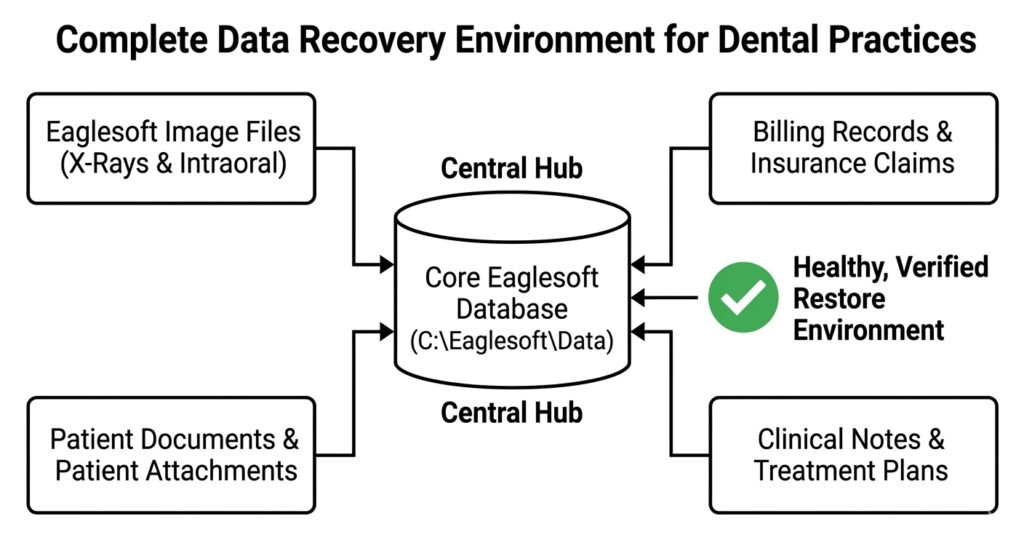
Don’t just copy the application folder. A reliable recovery requires protecting the database along with all detached images, documents, and configurations.
Your backup scope should include:
- Eaglesoft Data folder
- database and log files
- Eaglesoft Image files
- documents and attachments
- audio or other media files, if used
- clinical records and charting data
- billing and insurance data
- user and security configuration details
- month-end or year-end restore copies, when applicable
- any Eaglesoft data stored outside the default folder
The Eaglesoft Data folder is commonly located at C:\Eaglesoft\Data, though some practices use a different install path and should confirm the exact server location.
Because Eaglesoft is generally hosted on Windows systems, Apple/macOS or Unix/Linux users should confirm the actual data location with their IT provider, especially if Eaglesoft is accessed through remote desktop, virtualization, or a hosted server.
The risk is not just “missing a file.” In a real recovery, a partial backup can create a broken Eaglesoft environment. The database may open, but X-rays may be missing. Schedules may return, but document attachments may not link. Billing records may be incomplete because the wrong machine was backed up.
Do not assume that backing up the Eaglesoft program folder is enough. Program files help run the software, but the practice needs the actual Eaglesoft data environment to recover.
How to Back Up Eaglesoft Without Creating a Broken Restore [Step-by-Step]
Step 1: Confirm the Eaglesoft Server and Data Location
Start by identifying where Eaglesoft data actually lives.
In many practices, Eaglesoft runs from a local server. Workstations may access Eaglesoft, but the critical data usually resides on the server.
Confirm:
- the active Eaglesoft server
- the Eaglesoft Data folder path
- image and document storage locations
- whether data is stored outside the default folder
- whether the Eaglesoft Install folder should be included for month-end or year-end backup copies
This step prevents one of the most common backup failures: protecting a workstation while missing the real server data.
Step 2: Use a Backup Method That Captures Active Eaglesoft Data
Eaglesoft backup should be performed in a way that captures active data in a consistent, recoverable state.
Eaglesoft backup procedures commonly recommend working with an IT provider to ensure the correct data is copied and that active database files are handled in a consistent, recoverable way.A common Eaglesoft backup method is to log users out, stop the Patterson/Eaglesoft server service, copy the data files, and then restart the service so the backup captures a consistent state
PattLock workflows may work differently, and some Eaglesoft backup tools are designed to protect data without manually stopping the database service; practices should follow the current vendor documentation for their exact setup.
The practical takeaway: your backup method should match your Eaglesoft setup. Do not rely on basic copy-and-paste, consumer sync tools, or unverified backup jobs without confirming they can capture Eaglesoft data correctly.
Step 3: Back Up the Full Eaglesoft Data Environment
Once the correct server and data paths are confirmed, back up the full Eaglesoft data environment, not selected files.
Patterson’s guidance specifically says to back up the entire Eaglesoft Data folder. It also recommends daily, monthly, and yearly backup routines, with monthly and yearly routines including the Eaglesoft Data folder and the Eaglesoft Install folder if present.
This is especially important for practices with imaging, scanned documents, audio files, or custom storage paths.
Step 4: Store an Encrypted Offsite Backup Copy
A backup stored only on the Eaglesoft server does not protect the practice from server failure, theft, fire, water damage, or ransomware.
Your backup plan should include an offsite copy that is encrypted, access-controlled, and separated from the production environment. If Eaglesoft backups contain ePHI, the backup process should support HIPAA safeguards for confidentiality, integrity, and availability. HHS describes the HIPAA Security Rule as requiring appropriate administrative, physical, and technical safeguards for ePHI. [source]
Because Eaglesoft backups may contain patient data, many practices choose a HIPAA compliant backup service that supports encryption, monitoring, access controls, and vendor documentation.
Step 5: Test the Eaglesoft Restore
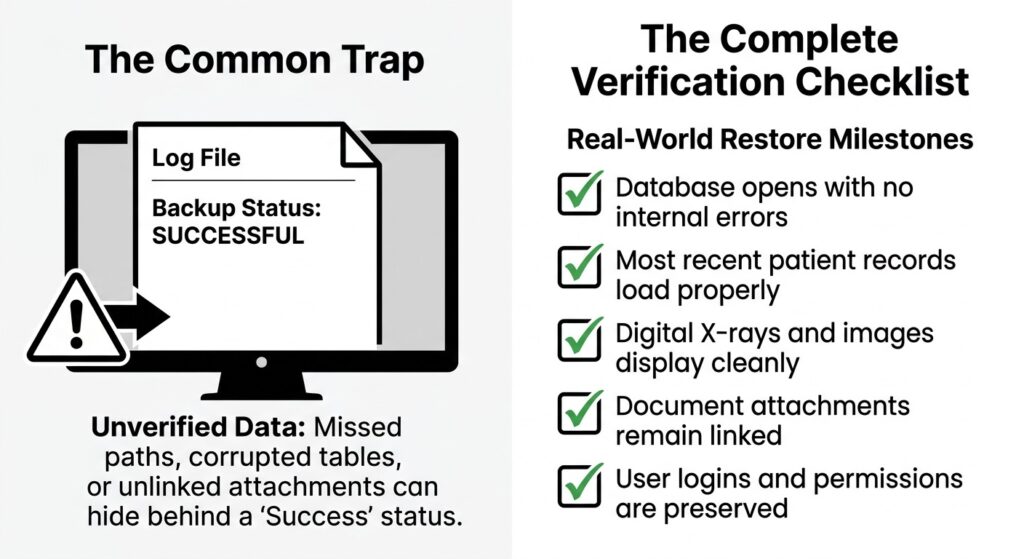
A green “Success” log file doesn’t mean your data can be salvaged. Regular restore tests are the only true confirmation that your patient files and schedules are accessible.
A backup log is not proof that Eaglesoft can recover.
A restore test should confirm that:
- Eaglesoft opens without database errors
- recent patient records are present
- appointment schedules match the expected backup date
- treatment notes and clinical records are accessible
- billing, claims, and account balances are intact
- Eaglesoft Image files are viewable
- document attachments are still linked
- user permissions and logins are preserved
- the restored data matches the expected recovery point
A strong backup verification and recovery process should prove that the backup can restore before a real outage, ransomware event, or failed update.
Practices should restore and verify backups on a regular schedule, because a successful backup log does not prove the data can actually be recovered.
Step 6: Document the Backup Process
Document what is protected, where the backup is stored, who monitors it, and when the last restore test was completed.
At minimum, keep records of:
- backup schedule
- folders and systems included
- image and document backup scope
- offsite storage location
- encryption method
- failed-backup alert process
- restore test dates
- vendor contact details
- BAA status, if a vendor handles ePHI
This documentation helps the practice prove that the backup process is intentional, monitored, and recoverable.
When to Create an Extra Eaglesoft Backup
Create a fresh, verified backup before any event that could change the Eaglesoft environment. That includes:
- Eaglesoft updates
- Patterson software changes
- server replacement
- workstation changes
- data migration
- imaging system changes
- database maintenance
- month-end processing
- year-end processing
- switching IT vendors
- changing backup providers
Patterson’s guidance recommends additional monthly and yearly backup routines before end-of-month and end-of-year processing so practices have restore points from before those processes run.
Treat major Eaglesoft changes as recovery checkpoints. If an update fails or an imaging path breaks, the practice needs a clean backup from before the change.
How Often Should You Back Up Eaglesoft?
Most dental practices should back up Eaglesoft daily at minimum.
The right frequency depends on how much data changes during the day. If your team could not recreate a full day of notes, images, claims, payments, and scheduling changes from memory, one daily backup may still leave too much exposure.
The first question is how much data the practice can afford to lose. This is the recovery point objective, or RPO. If losing a full day of appointments, charting, billing, or imaging is unacceptable, daily backup may not be enough.
The second question is how long the practice can operate without Eaglesoft. This is the recovery time objective, or RTO. If the office cannot function without schedules, patient records, imaging, and billing, restore speed matters as much as backup frequency.
For DSOs and multi-location practices, backup planning should also include centralized monitoring, location-level restore priorities, and consistent retention policies across offices.
Eaglesoft Backup Mistakes That Usually Show Up During Recovery
Mistake #1 – The Backup Was Only on a USB Drive, NAS, or Local Device
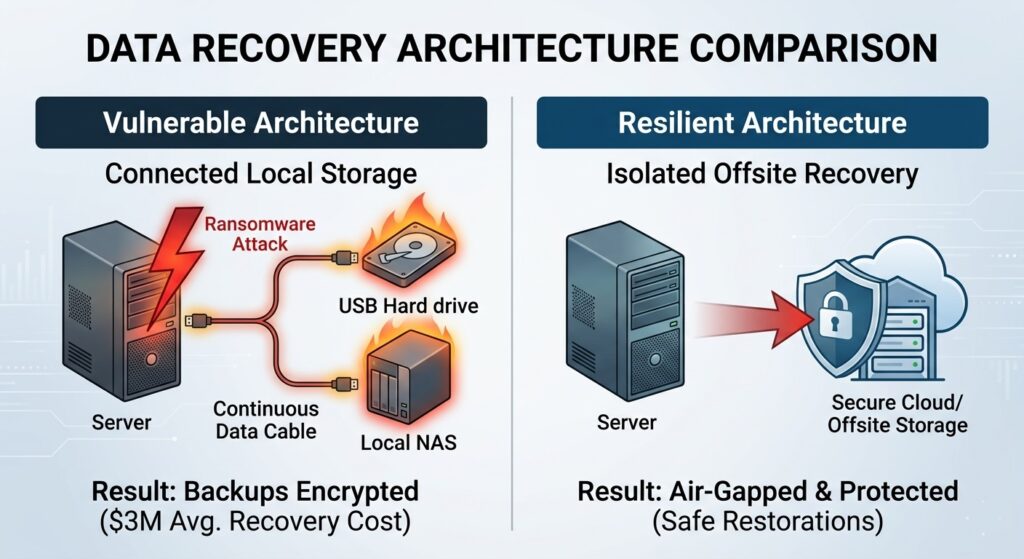
Attached local drives offer no protection during a cyberattack. If your backup drive is physically or logically connected to the network when ransomware hits, it gets encrypted along with your server.
External drives and NAS devices can be useful, but they should not be the only backup layer.
A common failure looks like this: the backup drive was connected during ransomware, so the backup was encrypted with the live Eaglesoft server.
Backup isolation matters. Sophos reported that organizations with compromised backups had median ransomware recovery costs of $3 million, compared with $375,000 when backups were not impacted [sources].
Sophos also reported that only 26% of organizations with compromised backups fully recovered within a week, compared with 46% of organizations whose backups were not impacted. [source]
Mistake #2 – The Program Folder Was Backed Up, Not the Data
Eaglesoft program files are not the same as Eaglesoft practice data.
In this failure scenario, the software may reinstall, but the patient database is not there. A complete backup must include the Eaglesoft Data folder and related data paths, not only application files.
Mistake #3 – Eaglesoft Image Files Were Missing
Some backup jobs capture database files but miss imaging data stored in a separate location.
That creates a partial restore. Patient charts may return, but X-rays, intraoral images, and other imaging records may be missing.
Mistake #4 – Cloud Sync Copied the Wrong Problem
Cloud sync tools are not the same as backup.
Sync tools may replicate deletions, corrupted files, overwritten files, or ransomware-encrypted files to the cloud. They may also fail to capture active Eaglesoft data in a consistent, recoverable state.
Eaglesoft needs controlled recovery points, offsite protection, and restore validation.
Mistake #5 – The Backup Was Never Restored in a Test
A backup can complete successfully and still fail during recovery.
The only way to know whether an Eaglesoft backup works is to restore it in a controlled test and confirm that the recovered data is usable.
Mistake #6 – The Vendor Did Not Provide BAA Clarity
If a backup vendor stores, manages, or has access to ePHI, the practice should confirm whether a BAA is required.
Before giving a vendor access to Eaglesoft data, ask whether they provide a Business Associate Agreement and whether their backup process supports HIPAA-aligned documentation.
Questions to Ask Before You Trust Your Eaglesoft Backup
These questions expose the gaps that usually stay hidden until recovery day.
Ask your Dental backup vendor:
- Are we backing up the full Eaglesoft Data folder?
- Are images, documents, and attachments included?
- Are active database files handled correctly?
- Is there an encrypted offsite copy?
- Is any backup copy isolated from ransomware?
- When was the last successful restore test?
- Who receives failed-backup alerts?
- Will the vendor sign a BAA if ePHI is involved?
If your practice cannot answer these questions, your backup may not be ready for a real incident.
How CDS Helps Dental Practices Recover Eaglesoft Data With Confidence
CDS helps dental practices move from “we think the backup ran” to “we know Eaglesoft can be recovered.”
With UnisonBDR, CDS supports monitored backup, encrypted offsite protection, restore verification, BAA-backed workflows, and guided recovery support for dental environments.
For Eaglesoft environments, CDS can support local Eaglesoft server backup, protection for practice data and imaging, encrypted backup storage, offsite recovery, backup monitoring, clean recovery verification, HIPAA-aligned workflows, BAA support during onboarding, and ransomware-resilient recovery planning.
That matters when a practice is dealing with failed hardware, ransomware, accidental deletion, or an Eaglesoft update that does not go as planned.
If Your Eaglesoft Backup is Already Failing
If your backup has not run, has never been restored, or is missing images or documents, do not wait for the next outage to investigate.
Start with three steps:
- Confirm what Eaglesoft data is actually being captured.
- Run a controlled restore test.
- Get the backup reviewed before the next update, migration, or hardware issue.
Common failure points include missing image folders, disconnected drives, incorrect folder paths, storage full errors, failed backup jobs, unmonitored alerts, and sync tools copying corrupted data.
Get an Eaglesoft Backup Assessment
Most dental practices do not realize their Eaglesoft backup has gaps until something forces them to find out.
A CDS data assessment reviews your current backup setup, identifies recovery and HIPAA exposure, and shows where your Eaglesoft backup process may need improvement.
- Book a Free Data Assessment:
- Talk to a HIPAA Backup Expert:
- Contact CDS: 888-907-1227 ·
- Mail Us : [email protected]
If your practice also manages Dentrix environments, read our Dentrix backup guide for software-specific backup and restore considerations.
Eaglesoft Backup FAQs
What folder should I back up for Eaglesoft?
Patterson recommends backing up the entire Eaglesoft Data folder. This folder includes the database, log files, images, documents, and additional files used by the database.
Can I back up Eaglesoft to an external hard drive?
Yes, but an external drive should not be your only backup. Drives can fail, be forgotten, remain connected during ransomware, or be damaged. Keep an encrypted offsite copy and test restores.
Is Eaglesoft Auto Backup enough?
No. Eaglesoft Auto Backup should be treated as only one part of a broader backup strategy, because practices still need offsite protection, restore testing, and confirmation that imaging and document data are included
How often should Eaglesoft be backed up?
Most dental practices should back up Eaglesoft daily at minimum. Higher-volume practices and DSOs may need more frequent backups based on how much data they can afford to lose.
Should I back up Eaglesoft before an update?
Yes. Create a fresh backup before Eaglesoft updates, server changes, migrations, database maintenance, month-end processing, and year-end processing.
Does cloud sync count as Eaglesoft backup?
No. Cloud sync may copy deletions, corrupted files, or ransomware-encrypted files. Eaglesoft needs a true backup with recovery points, offsite protection, and restore validation.
How do I know if my Eaglesoft backup is working?
Run a test restore. Confirm Eaglesoft opens, patient records load, images are viewable, documents are linked, and restored data matches the expected backup date.