If your dental practice runs on Dentrix, your daily operations depend on more than one software program. Dentrix connects patient records, treatment plans, imaging, schedules, billing, insurance claims, clinical notes, and practice history.
That data is not just business information. Much of it is electronic protected health information, or ePHI, under HIPAA. That means your backup process has to do more than copy files. It must protect patient data, preserve data integrity, and support clean recovery when something goes wrong.
Most dental practices believe they already have a backup. The real question is whether that backup captures the right Dentrix data, stores it securely, and restores cleanly during a ransomware event, server failure, or accidental deletion.
This guide explains how to back up Dentrix correctly, where dental practices often fall short, and how a HIPAA-compliant backup service can help protect Dentrix data before a real outage exposes the gaps.
How to Back Up Dentrix [Quick Answer]
To back up Dentrix, identify your Dentrix database location, confirm the relevant Common folder paths, export or capture the database in a consistent state, and back up all connected patient data sources. A complete Dentrix backup should include the database, imaging files, Document Center files, schedules, billing data, attachments, and security settings.
For local Dentrix environments, Dentrix documentation references the \Common\DBCopyForBackup folder, the \Common\DentrixSQL folder, and other files and folders connected to the practice database. Dentrix also allows practices to use the Dentrix Server Administration Utility to manually export a database copy or schedule recurring exports.
A safe Dentrix backup should not stop at file capture. Store at least one encrypted copy offsite, keep backups isolated from ransomware, and run regular restore tests to confirm Dentrix opens correctly after recovery.
What Dentrix Data Should Dental Practices Back Up?
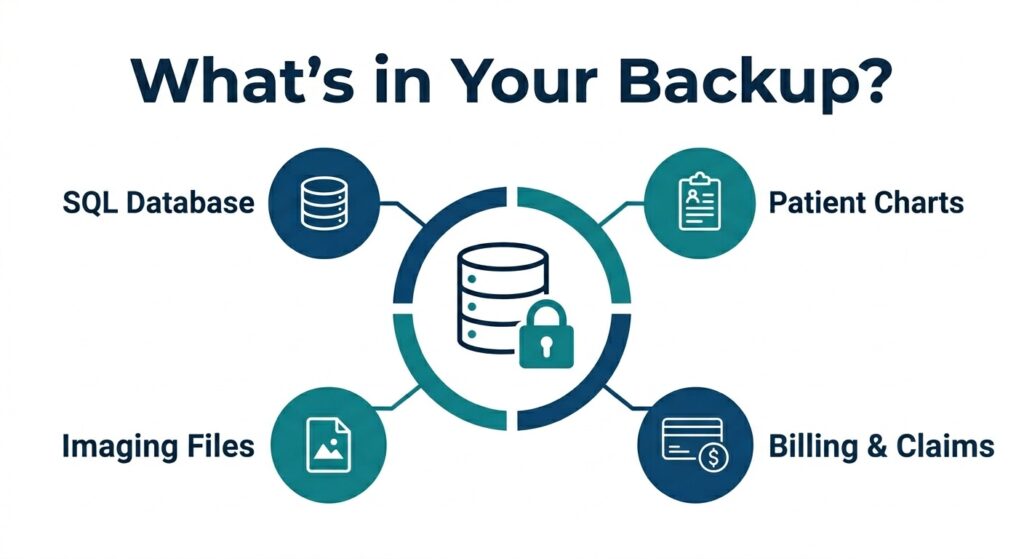
A reliable Dentrix backup requires capturing both the active database and all connected operational file paths simultaneously.
Dentrix stores far more than appointment data. A complete dental practice backup solution should protect every Dentrix data source that supports patient care and practice operations.
That includes:
- Patient charts and treatment history
- Periodontal exam data
- Patient demographics and insurance information
- Imaging files connected through Dentrix Image or third-party imaging systems
- Scheduling and appointment data
- Billing, insurance claims, and accounts receivable
- Treatment plans and clinical notes
- Document attachments and consent forms
- User permissions and security configurations
The mistake many practices make is assuming that backing up a Dentrix folder is the same as backing up Dentrix. It is not.
Dentrix uses structured databases and connected file locations. If your backup captures only the program folder, random shared folders, or a local file copy, you may still lose patient records, images, attachments, or the ability to restore the system in a working state.
When reviewing your backup, confirm whether it includes the relevant Dentrix Common folder locations, including database export folders, SQL-related Dentrix data, document folders, and any separate imaging paths used by Dentrix Image, DEXIS, or another third-party imaging platform.
How to Back Up Dentrix Correctly in 2026
The right Dentrix backup strategy depends on your setup. Some practices run Dentrix on a local server. Others use Dentrix Cloud or a hybrid environment with local imaging, billing, or document systems.
No matter which setup you use, Dentrix backup should be part of a broader business continuity and disaster recovery plan. The goal is not only to save data. The goal is to bring the practice back online with usable, clean, and complete records.
Step 1: Locate Your Dentrix Database
tart by identifying where your Dentrix database lives. In many dental offices, Dentrix data is stored on a local server or shared network location.
You should confirm:
- The Dentrix database location
- The \Common\DBCopyForBackup folder
- The \Common\DentrixSQL folder
- Document Center or Doc folder locations
- Imaging file paths
- Any third-party imaging, scanning, or attachment locations
- Backup export destination folders
Do not assume every Dentrix-related file lives in one obvious folder. Many practices have added imaging, document, billing, and scanning workflows over time.
Also, do not manually copy active Dentrix database files during the workday unless the backup solution is designed to handle open files correctly. Open databases can be inconsistent if copied without proper export or snapshot handling.
Step 2: Use Open File Backup for Active Dentrix Databases
Dentrix is often in use throughout the day. Front desk staff may be scheduling patients. Hygienists may be updating charts. Billing staff may be processing claims. A standard file copy or sync tool may not capture the database correctly while these files are active.
For local Dentrix systems, the Dentrix Server Administration Utility can be used to manually export a database copy or schedule recurring exports. Your backup process should then protect the exported database files along with the required Dentrix folders, imaging files, and related documents.
If your practice uses managed backup software like UnisonBDR, it should support open file handling or application-consistent capture. This allows the backup process to capture Dentrix data in a usable state even while the practice is operating.
Without this, your backup may appear successful but still fail during restoration.
Step 3: Store Dentrix Backups Offsite and Immutably
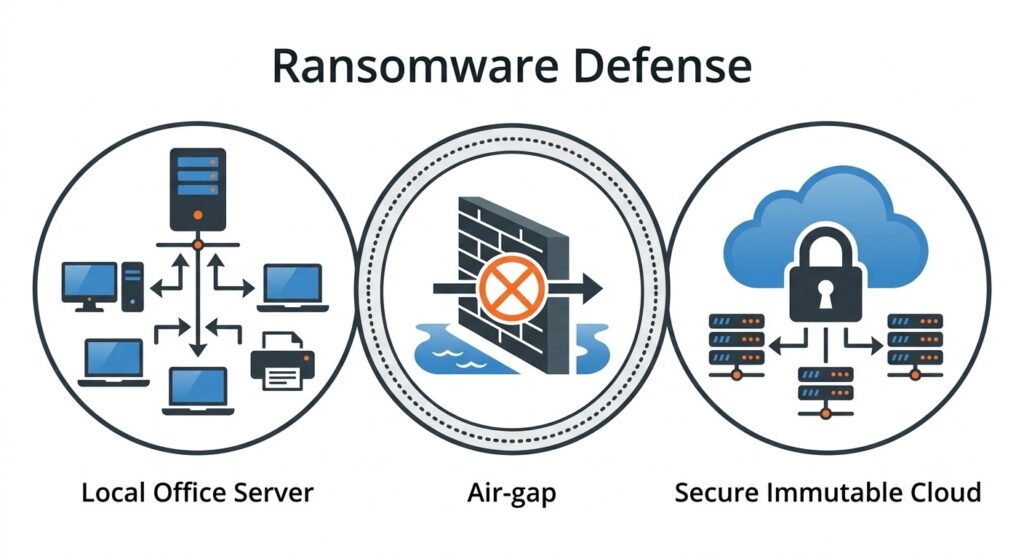
Local storage can easily fall victim to network-wide ransomware encryption. True continuity relies on an air-gapped, immutable offsite copy.
A backup stored only on your server, USB drive, or local NAS is not enough. If ransomware reaches your network, it can encrypt the live Dentrix environment and any connected backup storage.
Your Dentrix backup should include an offsite copy that cannot be deleted, altered, or encrypted from the production network. CISA’s ransomware guidance supports keeping recoverable backups separated from systems attackers may compromise.
Immutable backup storage matters because ransomware recovery depends on having a clean restore point that survives the attack.
Step 4: Encrypt Dentrix Backups at Rest and in Transit
Dentrix backups contain patient data, so they must be protected while they move and while they are stored.
The HHS HIPAA Security Rule requires covered entities and business associates to protect the confidentiality, integrity, and availability of electronic protected health information. For Dentrix backups, that means encryption should be applied both in transit and at rest.
Your backup process should also include access controls, user authentication, audit logs, and clear vendor accountability.
Step 5: Test Dentrix Backup Restores Regularly
This is the step most practices skip.
A backup that has never been tested is not a recovery plan. It is an assumption.
Run backup verification and recovery tests to confirm that Dentrix records, imaging files, schedules, billing data, and attachments can be restored in a usable state. Do not rely only on backup success logs. A log can show that files were copied, but it does not prove Dentrix will open correctly after recovery.
A restore test should confirm more than file presence. It should verify that Dentrix can open from the restored data, required Common folder components are present, and patient records, images, schedules, billing data, and attachments load as expected.
During a test restore, confirm:
- Patient records open correctly
- Images and attachments are intact
- Billing and insurance data are present
- Schedules restore properly
- User permissions and configurations remain usable
- The restored environment is free from corruption or infection
If the restore fails in testing, it will likely fail during a real incident.
Step 6: Document Dentrix Backup Logs and Restore Tests
Backup documentation matters for both operations and compliance. If your practice cannot show when backups ran, what was protected, whether encryption was active, and when restores were tested, your backup process is difficult to defend.
Keep records of:
- Backup schedules
- Backup success and failure logs
- Restore test results
- Encryption settings
- Vendor security documentation
- Recovery procedures
- Backup retention settings
- Signed vendor agreements
Any vendor that stores, transmits, or accesses Dentrix patient data should also sign a Business Associate Agreement. HHS provides sample Business Associate Agreement provisions to help covered entities understand what these agreements typically address.
Common Dentrix Backup Mistakes Dental Practices Should Avoid
Most Dentrix backup failures do not happen because a practice had no backup at all. They happen because the backup was incomplete, untested, locally exposed, or not designed for dental software recovery.
Mistake 1: Relying Only on USB Drives or Local NAS Backups
Local backups are useful as one layer, but they should not be the only layer.
A USB drive, local server, or NAS device can fail, be stolen, be damaged, or be encrypted by ransomware. If the backup is connected to the same environment as Dentrix, it may be exposed to the same incident.
A safer strategy includes offsite and immutable backup storage that remains protected even if the local environment is compromised.
Mistake 2: Trusting Untested Dentrix Backups
A backup is only useful if it restores.
Many practices do not discover backup problems until a server fails or ransomware locks the system. At that point, there is no time to troubleshoot missing files, corrupted databases, incomplete image folders, or failed recovery jobs.
Test restores should be part of the normal backup process, not something done only after an emergency.
Mistake 3: Backing Up Dentrix Program Files Instead of the Database
Backing up the Dentrix application folder does not guarantee that the working database is protected.
The database, images, attachments, and connected systems must all be included. This is especially important for practices using third-party imaging tools, local document storage, or custom network paths.
If your backup does not capture every required data source, your restored Dentrix environment may be incomplete.
Mistake 4: Using Backup Services Without HIPAA Safeguards
A consumer cloud backup service is not the same as a HIPAA-aligned managed backup service.
Dental ePHI requires more than storage space. It requires encryption, access controls, auditability, recovery documentation, and a vendor relationship that supports HIPAA obligations.
Before using any backup provider for Dentrix data, confirm whether the provider signs a BAA, protects data in transit and at rest, limits access, maintains logs, and supports recovery testing.
Mistake 5: Waiting Until a HIPAA Update or Cyber Incident Forces Action
HHS has proposed major updates to the HIPAA Security Rule that would strengthen expectations around cybersecurity, restoration procedures, incident response, and contingency planning.
Even before any final rule changes, dental practices should treat Dentrix backup as a core patient data protection issue. Ransomware, hardware failure, accidental deletion, and database corruption can interrupt patient care long before a compliance deadline arrives.
How Often Should Dental Practices Back Up Dentrix?
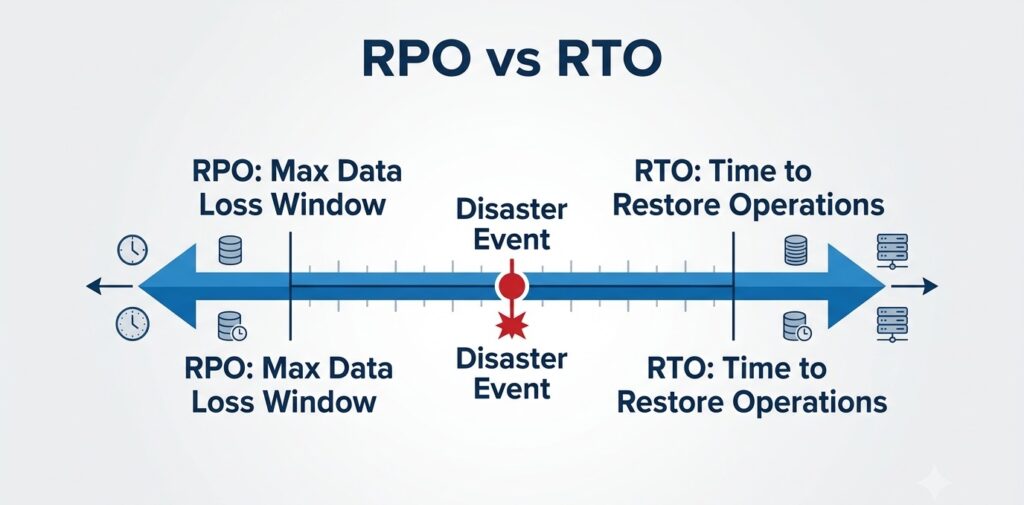
Mapping out your practice’s RPO and RTO establishes clear expectations for data survival and operational recovery times.
Most dental practices should back up Dentrix at least daily. High-volume offices, multi-location practices, and DSOs may need more frequent backup intervals depending on how quickly patient data changes.
The more time that passes between backups, the more data you can lose during an incident.
For example, if your practice backs up Dentrix once every 24 hours, a server failure near the end of the day could put a full day of appointments, clinical notes, insurance updates, payments, and treatment changes at risk.
Backup frequency should be based on two recovery goals:
- Recovery Point Objective, or RPO: how much data your practice can afford to lose.
- Recovery Time Objective, or RTO: how quickly your practice needs Dentrix restored after an outage.
A smaller practice may be comfortable with daily backups. A high-volume practice or DSO may need more frequent recovery points because each hour creates more patient, billing, scheduling, and clinical data.
How CDS Protects Dentrix Backups for Dental Practices
CDS UnisonBDR is built to protect practice systems like Dentrix without forcing office staff to manage backup jobs manually.
CDS focuses on verified recovery, not just backup completion. That difference matters because a successful backup job does not always mean the data is clean, complete, or restorable.
With UnisonBDR, dental practices get:
- Open file handling for active Dentrix databases
- Pre-storage file scanning before data enters the backup archive
- Clean recovery verification before restore points are needed
- Offsite, immutable backup storage on CDS private infrastructure
- HIPAA-aligned backup support with a BAA included at onboarding
- Backup health alerts
- Guided restore support during recovery events
- No reliance on AWS, Azure, or Google Cloud for CDS-hosted backups
For dental practices, the practical advantage is simple: your backup is not treated as complete until recovery has been considered.
What Should You Do If Your Dentrix Backup Fails?
If you discover your Dentrix backup has failed, has not been tested, or may be missing data, do not treat it as a minor IT issue. Treat it as a patient data exposure and business continuity risk.
Start with four steps:
- Stop relying on the failed backup for compliance documentation.
- Confirm what data is actually being captured.
- Run a test restore in a safe environment.
- Work with a backup specialist who understands dental practice systems.
Open the backup and confirm it includes the Dentrix database, exported backup copy, imaging files, attachments, patient records, schedules, and billing data. If the backup only includes the Dentrix program folder, it is not enough.
CDS offers a free data assessment for dental practices to identify backup gaps, failed restore risks, and HIPAA exposure before an outage forces the issue.
Dentrix Backup Checklist
Use this checklist to review whether your current Dentrix backup process is complete:
- Dentrix database location identified
- \Common\DBCopyForBackup included
- \Common\DentrixSQL included
- Document Center or Doc folders included
- Imaging files and third-party imaging paths included
- Scheduled database exports configured where needed
- Backup copies stored offsite
- Backup storage protected from ransomware access
- Data encrypted in transit and at rest
- BAA signed with any vendor handling ePHI
- Restore tests performed regularly
- Dentrix opens correctly after test restore
- Backup logs and restore documentation retained
If you cannot check each item confidently, your Dentrix backup may not be ready for a real recovery event.
Dentrix Backup FAQs
Does Dentrix Cloud back up automatically?
Dentrix Cloud includes hosted data protection as part of its platform, but practices should still understand what is backed up, how recovery works, how long data is retained, and whether they need an independent backup copy for continuity and compliance planning.
Can you back up Dentrix to an external hard drive?
You can back up Dentrix data to an external hard drive, but you should not rely on it as your only backup. External drives are vulnerable to ransomware, theft, damage, and human error. Dentrix backups should also include secure offsite storage.
What Dentrix folders should be backed up?
For local Dentrix environments, Dentrix documentation references the \Common\DBCopyForBackup folder and \Common\DentrixSQL folder. Practices should also confirm document, imaging, attachment, and third-party software paths.
How long should dental practices keep Dentrix backups?
Backup retention should match your clinical record retention policy, payer requirements, and state-specific dental record rules. The ADA’s dental records guidance can help practices evaluate general recordkeeping considerations, but state rules should also be reviewed.
What is the difference between a Dentrix backup and a HIPAA-compliant backup?
A Dentrix backup captures practice data. A HIPAA-compliant backup protects that data with security safeguards such as encryption, access controls, audit logs, restore documentation, and a signed BAA when a vendor handles ePHI.
How do you know if your Dentrix backup is working?
Run a test restore. If Dentrix cannot be restored to a usable state with patient records, images, schedules, billing data, and attachments intact, the backup is not working in a meaningful recovery sense.
Get a Dentrix Backup Assessment
Most dental practices do not find backup gaps until something breaks. By then, the damage may already be done.
A free data assessment from CDS reviews your current Dentrix backup setup, identifies missing data sources, checks restore readiness, and shows where your practice may be exposed.
If your backup has not been tested, is stored only locally, or does not include clean recovery verification, now is the time to fix it.
Talk to our HIPAA Backup Expert