A SoftDent backup can look fine on paper and still fail the practice when it matters.
That is the uncomfortable part many dental offices do not find out until a server crashes, a database becomes corrupted, or ransomware reaches shared folders. The office may have a backup job running every night. Someone may even see a “successful” message. But if the SQL backup file was never captured, image folders were excluded, or no one has tested a restore, the practice may not be recovery-ready.
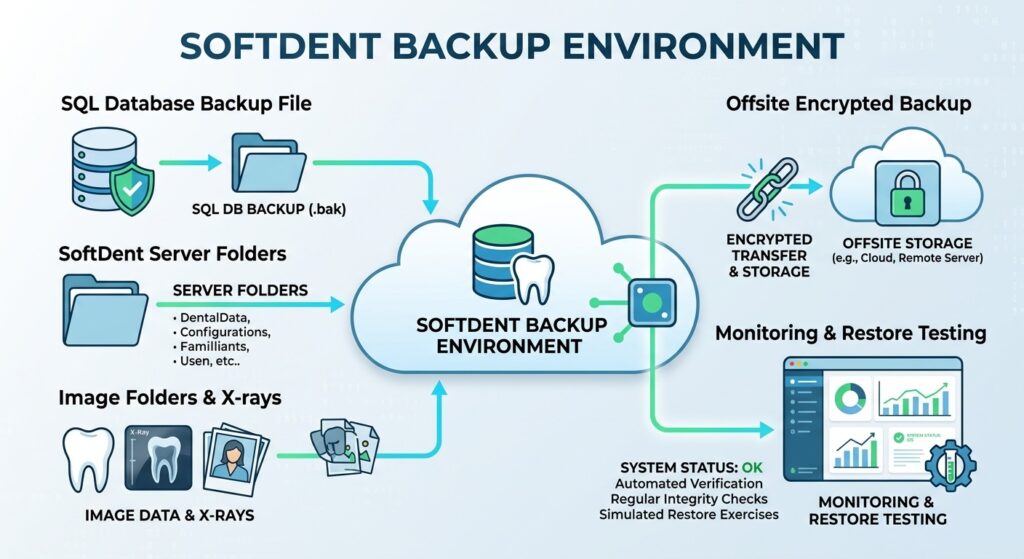
Carestream SoftDent supports daily operations across scheduling, billing, claims, patient records, and clinical workflows. So the backup plan has to protect more than one folder. It has to protect the working environment your team needs to reopen.
This checklist walks through what dental practices should review before a server failure, ransomware event, accidental deletion, or database issue interrupts access to SoftDent.
For practices that want managed help, CDS provides a Carestream SoftDent backup service built around encrypted backup, monitoring, and verified recovery planning.
How to Back Up SoftDent Safely: Start With Recovery, Not Just Backup
Backing up SoftDent safely is not just copying a folder to an external drive or syncing files to cloud storage.
A safer SoftDent backup plan should confirm that the practice can recover:
- SQL database backup files
- .bak files created from the database process
- SoftDent server folders and shared paths
- image files, X-rays, and clinical attachments
- billing, claims, scheduling, and patient records
- server configuration details
- clean restore points from before an incident
- written recovery steps
- tested restore access
Carestream documentation recommends backing up data each day the system is used. That daily rhythm is a good baseline, but frequency alone does not answer the bigger question: can the practice restore SoftDent cleanly if the main server is unavailable?
A complete backup plan should be built around the restore path, not just the backup job.
Why a SoftDent Backup Checklist Matters for Dental Practices
SoftDent is not a passive archive. It supports the front desk, billing team, clinical team, and patient workflow.
If SoftDent is unavailable, the practice may struggle to:
- see the day’s schedule
- check patients in or out
- access treatment records
- review balances
- process claims
- manage billing
- access clinical images
- communicate with patients
- keep production moving
That is why a partial backup can be so risky. The office may believe data is protected, while key files sit outside the backup scope.
Carestream documentation notes that file locations vary based on network setup and that certain backup scripts cover Carestream Dental data only. That means every practice should verify its own environment instead of assuming one default path protects everything.
The checklist below is designed for that review.
Checklist Item 1: Confirm SoftDent SQL Database Backups Are Created
Why SoftDent SQL Backups Need Special Attention
SoftDent environments may include SQL database data. That database layer needs specific attention because it is not always protected by a simple folder copy.
Carestream documentation describes the Database Extractor Utility as a way to extract a SQL backup file and place it in a selected directory. In practical terms, that means the practice should know where that SQL backup file is created and whether it is included in the backup set.
Ask your IT provider or backup partner:
- Is the SoftDent SQL backup process running?
- Where is the SQL backup file created?
- Is the backup file created before the nightly backup job runs?
- Is the backup file included in offsite storage?
- How long are previous copies retained?
- Has a SQL restore ever been tested?
The goal is not only to create the SQL backup file. The goal is to make sure it can be used during recovery.
Verify the .bak File Is Captured by Backup Software
This is one of the most common gaps.
Carestream documentation explains that the Database Extractor Utility creates a .bak file of the SQL databases so the file can be backed up by a third-party backup program. It also states that the utility process itself does not back up the data.
That distinction matters.
A .bak file sitting on the server is not enough if the backup software does not capture it, retain it, protect it offsite, and verify it can restore.
Your practice should confirm:
- the .bak file is created successfully
- the file location is known
- the backup software captures that location
- the backup run happens after the .bak file is created
- older .bak versions are retained
- restore testing includes the .bak file
Do not assume the SQL backup is protected because the extraction process ran. Confirm the full chain.
Checklist Item 2: Identify SoftDent Server Folders and Shared Network Paths
Document Where SoftDent Data Lives
SoftDent data may live on a local server, a shared network drive, or a practice-specific path. Image folders, reports, scanned files, and related data may sit in other locations.
Create a simple internal record that lists:
- server name
- SoftDent folder path
- SQL backup file path
- image folder path
- X-ray or attachment folder path
- backup software name
- offsite backup destination
- responsible IT contact
- last successful backup date
- last restore test date
This documentation does not need to be fancy. It needs to be clear enough that someone can follow it during downtime.
Review Backup Scope After IT or Server Changes
Backup paths can break quietly
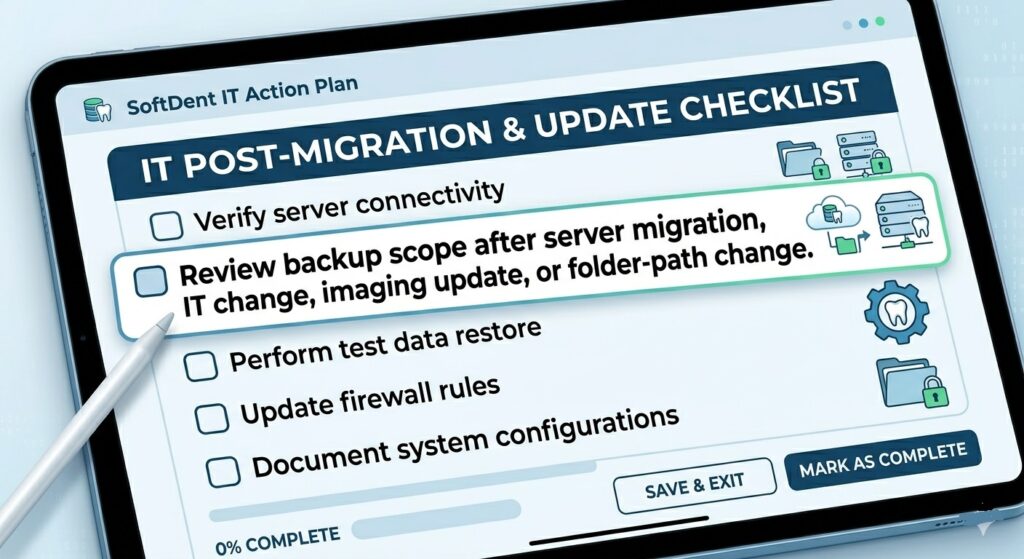
Review your SoftDent backup scope after:
- server replacement
- workstation changes
- imaging system changes
- folder permission changes
- software upgrades
- network share changes
- IT provider transitions
- storage migrations
A backup plan that worked last year may not protect the same files after a server move.
Checklist Item 3: Include Image Files, X-Rays, and Clinical Attachments
Do Not Assume Images Are Inside the Main Database
Dental images are one of the easiest things to miss.
A practice may protect the SoftDent database but overlook image repositories, X-rays, scans, attachments, and related clinical files. If those files are not included, the restored system may still be incomplete.
A practical backup review should ask:
- Where are images stored?
- Are X-rays stored in the same location as SoftDent data?
- Are attachments stored separately?
- Are image folders included in the backup job?
- Are image folders included in offsite storage?
- Have restored images been opened and checked?
The patient record is not fully usable if the clinical images are missing.
Confirm Imaging Folder Locations Before an Outage
Do this before the practice is under pressure.
Ask your IT provider to identify the actual image repository locations and confirm they are covered by backup monitoring. Then test access to restored image files during a restore review.
A database-only restore may bring back patient records but leave the clinical team without the images they need.
Checklist Item 4: Protect Billing, Claims, Scheduling, and Patient Records
Tie Backup Scope to Daily Practice Operations
Backup planning should start with the practice workflow.
If SoftDent goes down, what does the office need first?
For most dental practices, the priority is not just “files.” It is access to:
- today’s schedule
- patient records
- patient balances
- insurance claims
- billing data
- treatment history
- clinical notes
- image references
- user access
This turns the backup review into a business continuity review.
Ask What the Practice Needs First After a Restore
Define recovery priorities before an incident.
Your recovery plan should answer:
- What has to come back first?
- Which workstation needs access first?
- Who confirms the restored data is usable?
- Who contacts the backup provider?
- Who communicates with staff?
- What can the practice do manually if SoftDent is temporarily unavailable?
A written priority list helps avoid confusion during server failure or ransomware recovery.
Checklist Item 5: Store SoftDent Backups Offsite and Encrypted
Why Onsite-Only Backup Creates Risk
External drives can help with local backup, but they should not be the only protection.
Onsite backup can be affected by the same event that affects the server:
- hardware failure
- theft
- fire
- water damage
- ransomware
- accidental deletion
- missed drive rotation
- drive corruption
If an external drive remains connected to the server, ransomware may reach it too.
The safer model is to keep protected copies away from the production environment.
Why Encryption and Access Control Matter
Dental backups may contain electronic protected health information. That means backup storage should be planned with security controls, not only convenience.
A stronger backup setup should include:
- encryption at rest and in transit
- restricted access
- user accountability
- backup monitoring
- offsite storage
- restore-point retention
- vendor oversight
- recovery documentation
Backup supports HIPAA-aligned recovery planning, but it does not make a dental practice compliant by itself. Compliance also depends on risk analysis, policies, access controls, staff training, vendor agreements, and internal procedures.
Checklist Item 6: Monitor Backup Jobs and Failure Alerts
Confirm Backups Are Completing Successfully
A backup failure should not sit unnoticed for days.
Dental offices are busy. Staff may not have time to check logs, rotate drives, confirm file paths, or review backup reports. That is why monitoring matters.
Backup monitoring should catch:
- failed backup jobs
- skipped runs
- storage capacity issues
- missing folders
- disconnected backup destinations
- missing SQL backup files
- unusually small backup sets
- backup delays
A daily backup plan only works if someone knows when the daily backup fails.
Monitor the Right SoftDent Data Sources
Do not monitor only the general server status. Monitor the data sources SoftDent recovery depends on.
That includes:
- SQL .bak file location
- SoftDent server folders
- shared network folders
- image repositories
- X-rays and attachments
- offsite backup status
- retention status
- last successful backup timestamp
Monitoring should prove that the right data was captured, not just that a job ran.
Checklist Item 7: Keep Clean Restore Points for Ransomware Recovery
Why One Current Backup May Not Be Enough
A single current backup can be risky.
If ransomware encrypts files before the practice notices, the latest backup may preserve encrypted data. If corruption starts quietly, the newest backup may include corrupted files.
That is why clean restore-point retention matters.
Your practice should know:
- how far back backups go
- how many restore points are available
- whether older versions are protected
- whether backups are isolated from ransomware exposure
- which restore point would be used after an incident
The goal is to recover from a clean point before the damage.
Match Retention to Downtime and Data Loss Risk
Every practice should define two practical limits:
- How much data can we afford to lose?
- How long can we operate without SoftDent?
Those answers guide the backup schedule, restore-point retention, and recovery plan.
A single-location practice and a multi-location DSO may need different retention and recovery targets.
Checklist Item 8: Test SoftDent Restore Before an Emergency
Backup Completion Does Not Prove Recoverability
A backup report can say “successful” and still fail during restore.
Restore testing helps reveal:
- missing SQL files
- wrong folder paths
- missing images
- permission issues
- corrupted backup data
- incomplete backup scope
- workstation access problems
- outdated recovery documentation
Carestream documentation includes a process for restoring a previously extracted .bak file, which reinforces that backup and restore should be treated together.
The worst time to find a backup gap is when patients are waiting and the server is down.
What a SoftDent Restore Test Should Check
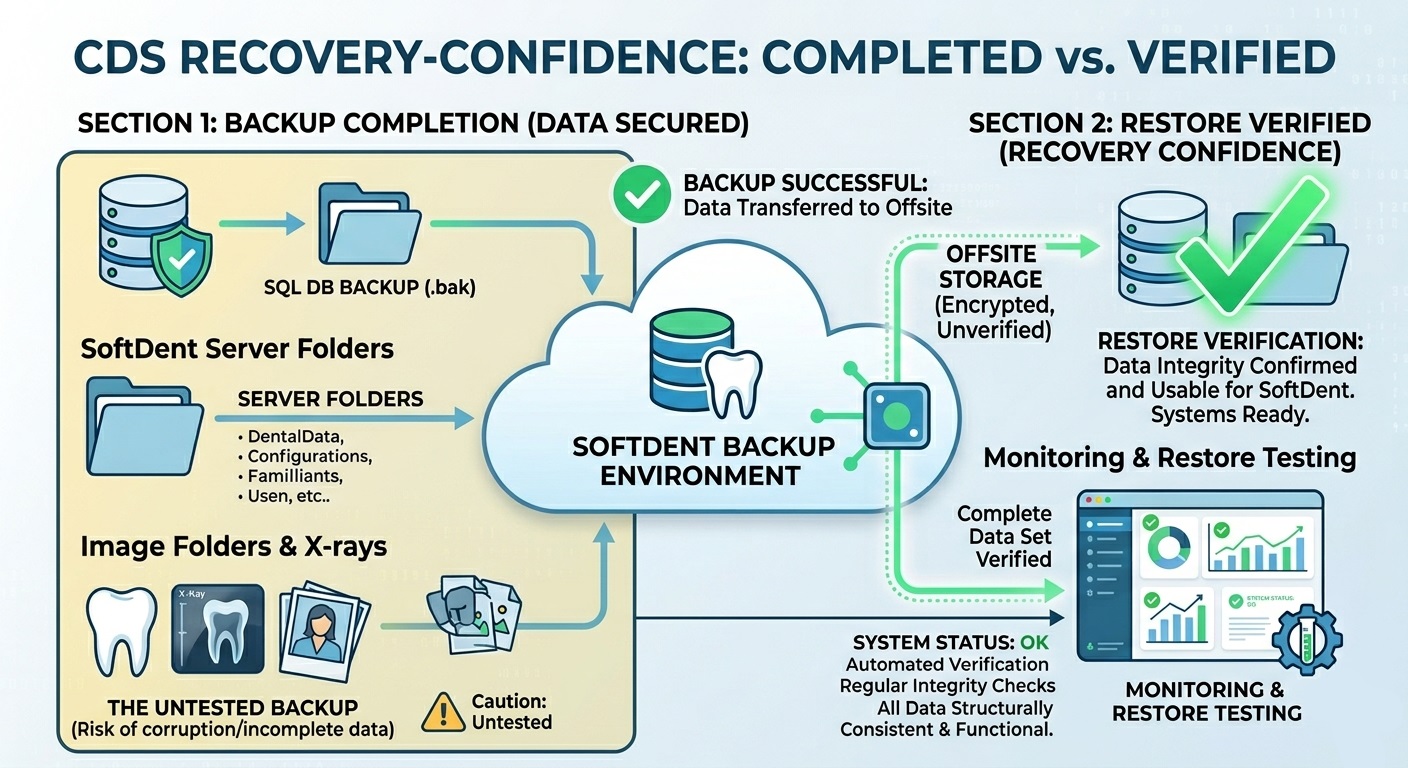
A SoftDent restore test should check:
- SQL backup file availability
- database restore usability
- SoftDent folder availability
- image file access
- X-ray and attachment access
- folder permissions
- workstation connectivity
- user access
- backup age
- restore-point accuracy
- recovery documentation
The test does not have to interrupt the practice, but it should be real enough to prove the backup can support recovery.
Checklist Item 9: Document the SoftDent Recovery Process
What Recovery Documentation Should Include
SoftDent recovery documentation should be simple, current, and easy to find.
Include:
- backup schedule
- SQL backup file location
- image folder locations
- SoftDent server paths
- offsite backup location
- retention settings
- backup software details
- responsible IT contact
- backup provider contact
- restore steps
- last restore test date
- cyber insurance notes
- HIPAA/security review notes
A recovery plan that only one person understands is a business risk.
Why Documentation Helps During Downtime
During downtime, documentation reduces guesswork.
It helps with:
- faster IT response
- smoother vendor handoff
- clearer staff communication
- cyber insurance communication
- HIPAA/security review support
- recovery prioritization
- less confusion during ransomware response
Good documentation does not replace backup technology. It makes the recovery process easier to execute.
Common SoftDent Backup Mistakes to Avoid
| Mistake | Why It Creates Risk |
| Only copying one SoftDent folder | SQL data, images, or related records may be missed |
| Not confirming the .bak file is captured | SQL backup may exist locally but not be protected |
| Relying only on external drives | Drives can fail, be lost, remain onsite, or be skipped |
| Using cloud sync as backup | Deletion, corruption, or ransomware may sync |
| Excluding image folders | X-rays and clinical images may be missing after restore |
| Never testing restore | Backup problems may appear only during an outage |
| No written recovery steps | IT response is slower during an emergency |
| No clean restore-point retention | The only available backup may include corrupted or encrypted data |
| Not reviewing backup after server changes | Folder paths or backup scope may change without anyone noticing |
SoftDent Backup Checklist Summary
Use this quick checklist to review your current SoftDent backup process.
Your SoftDent backup plan should confirm that:
- SQL database backup files are created.
- .bak files are captured by backup software.
- SoftDent server folders and shared paths are included.
- Image files, X-rays, and attachments are backed up.
- Billing, claims, scheduling, and patient records are protected.
- Backups are encrypted and stored offsite.
- Backup jobs are monitored.
- Failed backups trigger alerts.
- Clean restore points are retained.
- Restore testing is performed.
- Recovery steps are documented.
- A ransomware recovery plan exists.
- Backup scope is reviewed after server, software, or IT changes.
This is the difference between having a backup and having a recovery-ready SoftDent environment.
When to Move From Basic Backup to Managed SoftDent Backup
A basic backup process may be enough for some small environments, but many dental practices reach a point where manual checks and external drives are no longer safe enough.
It may be time to move to managed SoftDent backup if:
- your practice uses external drives or manual backup rotation
- no one checks backup failures consistently
- you are unsure whether SQL .bak files are captured
- image files may be stored separately
- your server is aging or being replaced
- you recently changed IT providers
- your practice has never tested a restore
- cyber insurance requires stronger backup documentation
- HIPAA/security review requires better recovery planning
- you want ransomware recovery readiness
- multiple locations need standardized backup and recovery
CDS provides a Carestream SoftDent backup service for dental practices that want managed backup, encrypted storage, monitoring, and verified recovery support.
You can also learn more about broader dental practice backup and recovery and CDS managed backup and disaster recovery solutions.
Need Help Reviewing Your SoftDent Backup?
Running SoftDent on a local server or dental office network?
CDS can help review your backup scope, identify missing risks, and protect SoftDent data with managed backup, encrypted storage, backup monitoring, and verified recovery support.
Talk to CDS About SoftDent Backup
FAQs About SoftDent Backup
What files should be backed up in SoftDent?
A SoftDent backup plan should include SQL backup files, SoftDent server folders, image files, X-rays, attachments, billing data, claims, scheduling data, patient records, and recovery-supporting configuration files.
Does SoftDent use SQL backups?
Yes. SoftDent environments may include SQL database data. The backup plan should confirm how SQL backup files are created, where they are stored, and whether backup software captures them.
Is a .bak file enough to protect SoftDent?
No. A .bak file still needs to be captured, stored securely, retained, monitored, and tested for restore.
Can cloud sync be used as a SoftDent backup?
Cloud sync alone is not a full SoftDent backup strategy. It may sync deleted, corrupted, or ransomware-encrypted files and may not support complete database, image, server, and workstation recovery.
How often should SoftDent be backed up?
Many practices back up SoftDent daily at minimum. Higher-volume offices may need more frequent restore points based on their acceptable data loss and downtime risk.
Why should SoftDent backups be tested?
Restore testing confirms the backup is usable. Without testing, a practice may not find missing SQL files, image folders, permissions, or corrupted backup data until a server failure or outage.
Is SoftDent backup required for HIPAA?
HIPAA does not mention SoftDent by name, but dental practices handling ePHI need safeguards for data backup, disaster recovery, and contingency planning.
Brief Summary
A safe SoftDent backup plan should protect more than one folder. Dental practices should confirm that SQL .bak files, SoftDent server folders, image files, X-rays, billing data, claims, scheduling records, and recovery documentation are included in backup scope. The strongest backup plan also includes encrypted offsite storage, monitoring, clean restore-point retention, and restore testing so the practice can recover after server failure, ransomware, or data corruption.