What happens to your Practice-Web schedule, charts, and billing records if your server fails tomorrow?
Most practices assume the answer is “we have a backup” without ever confirming it, but that assumption is costly.
According to Kaseya’s 2025 backup and recovery report, only 40% of respondents said they felt confident in their backup and recovery systems (Source).
IBM’s 2024 Cost of a Data Breach report reported a global average breach cost of $4.88 million and highlighted the business disruption caused by breaches (Source).
Practice-Web’s built-in backup utility is typically a local, manual first step. However, many practices still need separate automation, offsite storage, encryption, and restore testing to build a complete recovery plan.
This guide explains what Practice-Web data should be backed up, where the built-in backup tool has limitations, and how CDS provides verified, HIPAA-compliant backups designed for Practice-Web’s database structure.
What Practice-Web Data Should Dental Practices Back Up?
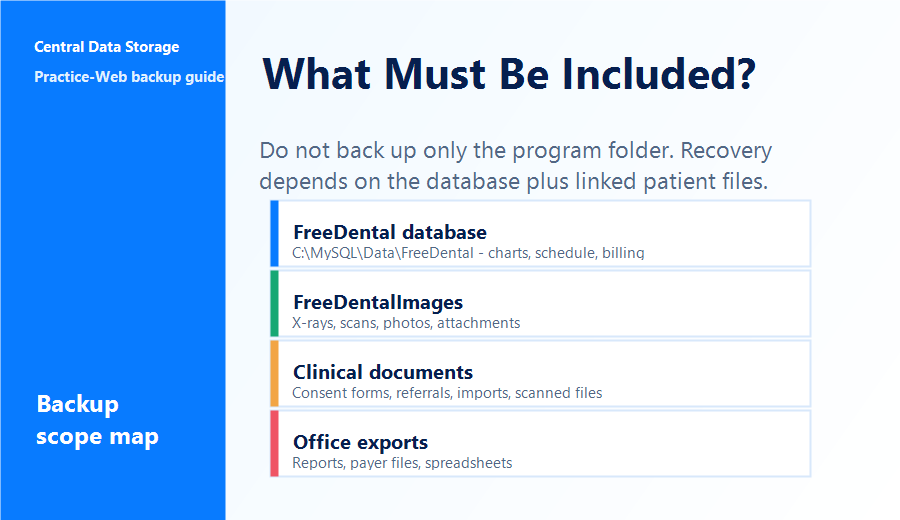
Practice-Web stores patient and practice data in more than one place, so a backup that misses either location isn’t complete. A full Practice-Web backup should include:
- Patient records and charts: Demographics, medical/dental history, perio charts, treatment plans
- Scheduling data: Appointments, recall lists, provider schedules
- Billing and insurance: Claims, A/R, payment history, eligibility data
- Clinical notes and consent forms: Progress notes, signed forms, attachments
- Imaging files: X-rays and photos stored in the /FreeDentalImages folder, separate from the main database
- User permissions and security settings: Access controls tied to HIPAA compliance
- The core Practice-Web database: The MySQL database (FreeDental) that holds most of the above
Because Practice-Web stores patient records, scheduling, billing, and imaging in separate locations, a reliable dental practice data backup process has to protect more than one folder or data source.
In many installs, the database and the images folder live in separate locations on the server. A backup routine that only copies the Practice-Web program folder, or only the database, can leave a practice with incomplete records during a real recovery, such as charts with no X-rays attached or images with no patient data to match them to.
This is the same structural gap we’ve seen in other dental platforms; see our guide on backing up Dentrix data for a similar breakdown.
How to Back Up Practice-Web Database and Imaging Files in 2026
A reliable Practice-Web backup isn’t one action; it’s a short sequence of steps that, done correctly, protects your practice from the data loss scenarios that catch most offices off guard. Here’s how to do it properly, from locating the right files to confirming a backup will actually restore when you need it.
Step 1: Find the Practice-Web MySQL Database
Confirm the exact location of your data before backing up anything. The core Practice-Web database is often stored in a MySQL/MariaDB data directory such as C:\MySQL\Data\FreeDental, while imaging may be stored separately in a folder such as C:\FreeDentalImages. These are example locations, so verify the exact paths on your server before backing up anything.
Step 2: Use the Practice-Web Built-In Backup Tool
Practice-Web’s built-in tool, found under the Manage menu, typically creates a local copy of the database. It’s a reasonable first step, but it is usually manual, local by default, and does not cover automation, offsite storage, or restore verification. Treat it as one layer, not the whole strategy.
Step 3: Store Practice-Web Backups Offsite
A local copy sitting on the same network as the original offers no protection if that network is compromised. Ransomware increasingly targets backup files specifically, which is why current security guidance favors offsite and immutable backup copies that are harder for an attacker to alter or delete after compromise.
For practices that do not want to rely on local drives or manual copies, managed secure data backup services can help keep encrypted backup copies offsite and recoverable.
Step 4: Encrypt Practice-Web Backups for HIPAA Compliance
In dental practices, Practice-Web data can include ePHI because it may contain patient records, clinical notes, billing details, insurance information, and imaging references. The HIPAA Security Rule requires appropriate administrative, physical, and technical safeguards for ePHI, and encryption is an addressable implementation specification rather than a universal mandate.
In practice, many organizations use AES-256 for data at rest and TLS for data in transit as part of a documented risk-based security program.
Step 5: Test Practice-Web Backup Restores
Periodically restore a backup to confirm it works, not just that the file exists, but that Practice-Web opens it correctly, with the database matched to the right name and any paths reassigned properly.
This is where backup verification and recovery matter because a successful backup notification does not prove Practice-Web will open correctly after a restore.
A backup that’s never been restored is an assumption, not a plan.
Step 6: Document Practice-Web Backup Logs
Keep records of when backups ran, when restores were tested, and the results. This documentation supports HIPAA compliance and should be paired with a signed BAA for any vendor involved in storing or backing up the data.
How Often Should Dental Practices Back Up Practice-Web?
Backup frequency comes down to two numbers: how much data you can afford to lose, and how quickly you need to be back up and running.
- Recovery Point Objective (RPO): The maximum amount of time between backups, or the amount of data loss acceptable if something fails right before the next backup. For a practice actively scheduling, charting, and billing all day, an RPO measured in hours is safer than one measured in days.
- Recovery Time Objective (RTO): How quickly the practice needs to be operational again after a failure. A practice that can’t function without Practice-Web for even half a day needs an RTO measured in hours, not days.
For most dental practices, this translates to daily backups at minimum, run automatically outside business hours, with more frequent backups for high-volume practices where a single day’s data represents a meaningful volume of patient records, claims, and imaging.
How does Central Data Storage Back Up Practice-Web Data?
Central Data Storage (CDS) builds its backup process around how Practice-Web actually stores data, rather than treating it as a generic set of files to copy. That starts during onboarding, when CDS configures backup around the practice’s specific database location, imaging folder, and server setup, using the same on-premise, HIPAA-aligned approach it applies across dental practices and DSOs.
- Captures open files during active use: Supports backups while the database is in active use during business hours, reducing the need to shut down or pause work.
- Scans and verifies before storage: Files are verified before storage so a corrupted or incomplete file does not silently become part of the backup chain.
- Encrypts data in transit and at rest: Backups are encrypted from the moment they leave the practice’s server through storage.
- Stores offsite in U.S.-based data centers: Backups are stored offsite in U.S.-based data centers rather than in a generic consumer cloud sync folder.
- Runs automatically, on a schedule: No one at the practice has to remember to trigger a backup.
Includes a Business Associate Agreement, which is required when a vendor creates, receives, maintains, or transmits ePHI on behalf of a covered entity.
How CDS Verifies Practice-Web Backups Restore Correctly
A backup that scans clean isn’t the same as a backup that restores cleanly. Practice-Web’s database has to open correctly, with the right data in the right place, for a backup to actually be useful in a recovery.
- Restore testing, not just backup logging: It performs restore testing as part of its backup process, rather than relying only on a completed-backup notification.
- Checks the data itself, not just file presence: A restore test confirms patient records, imaging, and schedules are intact and usable, not just that a file of the expected size exists.
- Catches issues before they become emergencies: If a backup wouldn’t restore cleanly, that’s identified during routine testing, not during an actual outage when the practice needs it most.
Gives practices a documented answer, not an assumption, when asked: “Can we actually recover from this backup?”
Practice-Web Built-In Backup Tool vs. CDS Backup
The built-in backup tool and a managed solution like CDS aren’t solving the same problem; one covers a local copy, the other covers the full recovery picture. Here’s how they compare side by side.
| # | Built-In Backup Tool | CDS Backup |
| Storage location | Local, same server/network | Offsite in U.S.-based data centers |
| Automation | Must be run each time manually | Runs automatically on a schedule |
| Encryption | Typically not built in | Backups are encrypted in transit and at rest |
| File verification | Typically none | Scanned and verified before storage |
| Restore testing | Typically not included | Performed periodically as part of the service |
| HIPAA BAA | Not applicable | Included |
| Works during active use | Requires care around open files | Captures open files without disrupting the office |
Common Practice-Web Backup Mistakes Dental Practices Should Avoid
Most Practice-Web data loss incidents don’t happen because a practice had zero backup. They happen because the backup had a gap nobody noticed until it mattered.
- Relying only on a USB drive or local NAS: These devices fail, get lost, get stolen, or get encrypted right alongside the server during a ransomware attack.
- Trusting a backup that’s never been tested: A backup job completing successfully isn’t proof that the database will actually open in Practice-Web during a real restore.
- Backing up the Practice-Web program folder instead of the database: The application files aren’t the patient data the MySQL database and /FreeDentalImages folder are, and it’s easy to back up the wrong one.
- Using a generic backup service with no HIPAA safeguards: Consumer cloud storage tools rarely sign BAAs or provide encryption and access controls suitable for ePHI.
- Assuming the built-in backup tool is a complete solution: It’s a useful first layer, not a substitute for offsite, automated, verified backup.
Practice-Web Backup Checklist for Dental Practices
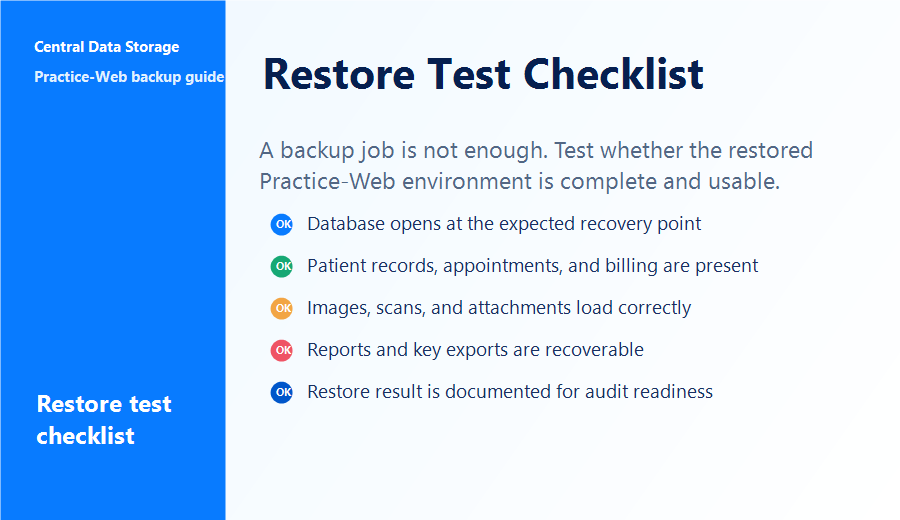
Use this as a quick self-audit. If any item is unchecked, that’s a real gap in your current backup strategy, not just a nice-to-have.
- Confirmed location of the MySQL database (C:\MySQL\Data\FreeDental)
- Confirmed location of the /FreeDentalImages folder
- Identified any additional custom document/imaging paths
- Backup runs automatically, not manually
- At least one backup copy is stored offsite
- Backup encrypted at rest and in transit
- Backup restore tested within the last 90 days, or according to the practice’s documented risk review
- Restore test confirmed data opens correctly in Practice-Web, not just file presence
- Signed BAA in place with backup vendor
- Backup and restore-test logs documented and retained
A few unchecked boxes don’t mean your practice is unprotected; they mean it’s time for a closer look before an outage forces the question.
Get a Practice-Web Backup Assessment
Your Practice-Web database holds years of patient charts, imaging, billing history, and treatment records that can take seconds to lose and months to rebuild, if it can be rebuilt at all. The built-in backup tool is a reasonable starting point, but on its own, it leaves automation, offsite storage, encryption, and restore testing as gaps your practice has to close.
That’s the difference a verified backup process makes: not just knowing a backup exists, but knowing it will actually restore when your practice needs it most. If you’re not certain your current setup does that, CDS offers a free data assessment to review your Practice-Web backup, identify gaps, and show you exactly where your practice may be exposed before a failed server or a ransomware attack forces the question.
Practice-Web Backup FAQs
Is cloud sync or file syncing the same as a Practice-Web backup?
No. Syncing keeps data current across devices but doesn’t protect against corruption, ransomware, or accidental deletion the way a true, versioned backup does.
How long should Practice-Web backups be retained?
HIPAA documentation is generally retained for at least six years, but state medical-record retention laws may require longer retention periods.
Do I need a new backup plan when I update Practice-Web software?
Yes. Run a fresh backup before any major software updates. Updates can occasionally alter the database structure, and having a pre-update copy protects against a failed upgrade.
Can I back up Practice-Web across multiple office locations from one system?
Yes. With the right setup, you can centrally manage backups for multiple Practice-Web locations, helping ensure consistent protection, monitoring, and restore testing across every office.
What happens to my backups if I switch away from Practice-Web?
Your existing backups may need to be retained according to HIPAA documentation requirements, state record-retention rules, and your practice’s written retention policy.